Showing posts with label Intermediate. Show all posts

Wednesday, February 9, 2011

FAQ #31 - How to create your own in-house Update Center in JDeveloper

Introduction

If you ever used the Check for Updates... feature in JDeveloper, I am sure you've seen the list of available Update Centers from which you can download your JDeveloper extensions. In this post we will go through the process of adding your own Update Center to supply your own extensions in a corporate environment.


Main Theme

You can access the Check for Updates... feature in JDeveloper via the Help | Check for Updates... menu. Once you do so, a list of the available Update Centers is presented as shown in the picture below.


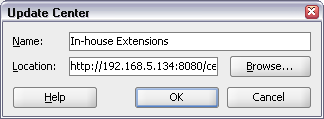
It is easy to add your own Update Center by clicking on the Add... button and supplying the necessary information, i.e. the name of the Update Center and its location.


The Update Center location is the http address of the Update Center descriptor as in http://192.168.5.134:8080/center.xml in the above example. The Update Center descriptor is an XML file describing the Update Center and the extensions that makes available. Below is an example descriptor:

The updates tag encloses all available extension updates that are made available by the Update Center. Each extension is listed within the update tag. The information provided in the nameversionauthorauthor-url and description tags are used by JDeveloper to present the necessary information about the specific extension. The bundle-url tag points to the location from where the extension can be downloaded. It does not need to reside in the update location necessarily.

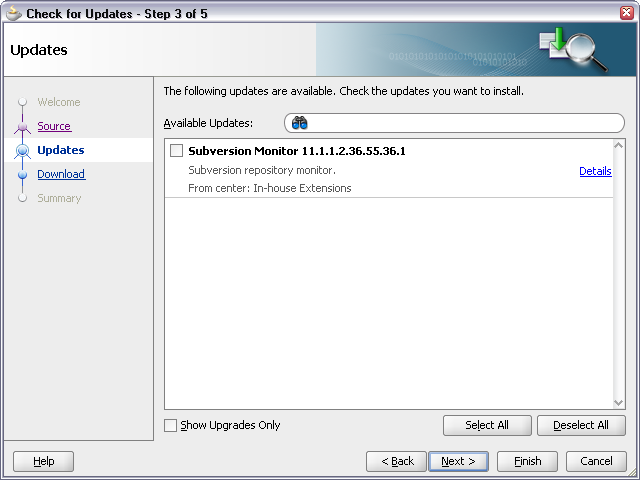
After adding the update center, the Check for Updates... page will reflect the Update Center added as it is shown below:


Selecting the newly added Update Center and clicking Next will present a list of the extensions that are made available by the Update Center.


Conclusion

Adding your own JDeveloper Update Center to supply your own extensions is a pretty straightforward business. Just add it in the Check for Updates... and provide the appropriate Update Center descriptor to describe the JDeveloper extensions that are made available by the Update Center. Of course you've got to have your Update Center web server up and running and your extensions on-line to start serving the extension download requests ;)

Until the next time, keep on JDeveloping!


Tuesday, November 23, 2010

FAQ #30 - How to setup a WebLogic cluster load balancer using Apache and the Apache HTTP Server Plug-In

Introduction

Load balancing refers to obtaining high availability and better performance by dispatching incoming user requests to different servers on a clustered setup. A load balancer can be anything from a simple servlet or plug-in, to expensive hardware. In this FAQ we will take a look at the Apache HTTP Server Plug-In and how it can be configured to proxy requests to the WebLogic cluster that we setup in FAQ #27 and FAQ #28.


Main Theme

"The Apache HTTP Server Plug-In allows requests to be proxied from an Apache HTTP Server to WebLogic Server. The plug-in enhances an Apache installation by allowing WebLogic Server to handle requests that require the dynamic functionality of WebLogic Server.


The plug-in is intended for use in an environment where an Apache Server serves static pages, and another part of the document tree (dynamic pages best generated by HTTP Servlets or JavaServer Pages) is delegated to WebLogic Server, which may be operating in a different process, possibly on a different host. To the end user—the browser—the HTTP requests delegated to WebLogic Server still appear to be coming from the same source.


The Apache HTTP Server Plug-In operates as an Apache module within an Apache HTTP Server. An Apache module is loaded by Apache Server at startup, and then certain HTTP requests are delegated to it. Apache modules are similar to HTTP servlets, except that an Apache module is written in code native to the platform."

In this example we will be installing the Apache HTTP Server on a separate Linux box. If you have followed the two previous FAQs (FAQ #27 and FAQ #28), we have setup a WebLogic cluster comprised of two Managed Servers running on two separate Linux machines.

Briefly the steps involved are:

1. Install the Apache HTTP Server
2. Install and configure the Apache HTTP Server Plug-In
3. Verify the load balancer

So, let's get started.

1. Install the Apache HTTP Server

We will be installing Apache on an openSUSE Linux distribution. Start by opening a terminal window and as root install Apache by typing: yast2 --install apache2. This will initiate YaST2 to download and install Apache.


Verify that the installation is successful by typing rcapache2 status in the terminal window. It should respond with status unused.


To test the installation we will need to create an index.html file in /srv/www/htdocs and start Apache by typing rcapache2 start.


Finally open a browser window and verify that the server is accessible.


For administration purposes it is recommended that you create an Apache administrator user account and give it ownership of the /srv/www, /srv/ftp and /etc/apache2 directories, the apache startup script /etc/init.d/apache2 and the log directory /var/log/apache2. Also add /usr/sbin to the account's path to get access to the rcapache2 start-up link.

The process of installing Apache is similar for other Linux distributions. For Windows you will have to  download the Apache binary installation package from the Apache HTTP Server Project web site -  http://httpd.apache.org/ at the time of this writing - and run the installation yourself.


2. Install and configure the Apache HTTP Server Plug-In

To download the Apache HTTP Server Plug-In go to the Oracle WebLogic downloads site - currently http://www.oracle.com/technetwork/middleware/ias/downloads/wls-main-097127.html - and click Oracle WebLogic Server Web Server Plugins 1.1 All versions under the Additional Fusion Middleware Downloads section. You will have to first click See All under the Oracle WebLogic Server 11g Rel 1 (10.3.3) Installers section to see the Additional Fusion Middleware Downloads.


This will download a cumulative archive - called WLSPlugin1.1-11gR1PS2.zip - which contains all WebLogic plug-ins.  Open the archive and extract the archive appropriate for your Operating System, for this example - a 64-bit Linux distribution - it is called WLSPlugin1.1-64bitApache2.2-linux64-x86_64.zip.

To install the WebLogic Plug-In first extract the contents of the appropriate zip file - for this example we logged-in using the apache administrator account and extracted the WebLogic Plug-in into the  /home/apache/WLSPlugin1.1-64bitApache2.2-linux64-x86_64 directory. Then edit the httpd.conf file in /etc/apache2 and add the following section:


# WebLogic load balancer add-in configuration
LoadModule weblogic_module /home/apache/WLSPlugin1.1-64bitApache2.2-linux64-x86_64/lib/mod_wl.so
<ifModule mod_weblogic.c>
  WebLogicCluster   192.168.1.106:7003,192.168.1.107:7003
  Debug             ON
  WLLogFile         /home/apache/WLSPlugin1.1-64bitApache2.2-linux64-x86_64/log/mod_wl.log
  WLTempDir         /home/apache/WLSPlugin1.1-64bitApache2.2-linux64-x86_64/tmp
  DebugConfigInfo   ON
  KeepAliveEnabled  ON
  KeepAliveSecs     15
  DynamicServerList ON
</IfModule>


<Location /cluster>
    SetHandler weblogic-handler
</Location>


Change the cluster IP addresses and ports appropriately for your setup. Also ensure that the log and temporary directories that you specify exist - for this example we have created a log and a tmp directory inside the directory where we originally extracted the plug-in. Lastly, make sure that the plug-in library directory is listed in the LD_LIBRARY_PATH environment variable.


Now restart Apache and observe that there are no errors. For complete installation instructions refer to the file README.txt included in the compressed archive.


3. Verify the load balancer

To verify the load balancer installation you need to send a request to a http://apache-host:apache-port/cluster/  URL, where apache-host is the host running Apache, apache-port is the Apache HTTP port, cluster is the configurable context path we specified above with the <Location> tag when configuring the plug-in. Because of the /cluster context in the URL path, Apache will forward the request via the WebLogic Plug-In to the WebLogic cluster. Any requests that do not contain the /cluster context in the URL will be served normally by Apache. 


So, let's start JDeveloper and create a simple ADF application. On the Edit WAR Deployment Profile Properties dialog make sure that cluster is specified as the Java EE Web Context Root.


Ensure that the cluster is up and running, create an Application Server connection to the WebLogic cluster, an application deployment profile and deploy the application on the cluster.


Observe at the log window that the deployment is successful for all managed server nodes that make up the cluster.


You can test the load balancer by sending the following request http://apache-host:apache-port/cluster/faces/TestLoadBalancer.jspx, for this example the IP address of the Apache server is 192.168.1.101, so the complete URL is http://192.168.1.101/cluster/faces/TestLoadBalancer.jspx. Apache recognizes the /cluster context path in the URL and forwards the request to WebLogic via the WebLogic Plug-In!


Any requests that do not contain the /cluster context in the URL are served normally by Apache.


For the Apache WebLog Plug-In logs refer to the log file defined during the configuration earlier.


Conclusion

In this post we 've seen how a software Load Balancer based on Apache and the Apache WebLogic Plug-In could be setup to work along with a cluster setup.

Until the next time, keep on JDeveloping!


Friday, November 5, 2010

FAQ #28 - How to setup a WebLogic cluster, Pt. 2

Introduction

In this second part of setting up a WebLogic cluster we will continue where we left of in part one and complete our cluster installation. We will also do some monitoring on the cluster setup to ensure that is configured and working properly.


Main Theme

Just to recap what we 've done so far:

1. we have installed WebLogic on both physical machines that make up the cluster,
2. we have created a WebLogic Domain in one of the physical machines, and
3. we have configured the domain: we created two WebLogic Managed Servers and two WebLogic Machines, we assigned the Managed Servers to WebLogic Machines and verified that the node manager running on the physical machines is reachable.

We will complete the setup by following these steps:

4. Copy the domain file structure to the other physical machine and enroll it to the WebLogic Domain
5. Ensure that both WebLogic Machines are operational
6. Create and configure the WebLogic Cluster
7. Ensure that the Cluster is operational

Let's get on with it!

4. Copy the domain file structure to the other physical machine and enroll it to the WebLogic Domain

WebLogic comes with a pack utility that allows you to pack a domain and move it from one place to another. We will instead use plain old Linux tar and gzip to pack our WebLogic domain directory file structure and move it from one physical machine - the one that we have done steps 2 and 3 so far - to the other. Before doing so, we will shutdown the domain and node manager if they are still running on the first machine. Once the packing is done, we will re-start them.

To shutdown the domain, simply press Ctrl-C within the console running the domain. Alternatively, you could shutdown the  domain by shutting down the Administration Server using the Administration Console. Once the  domain is shutdown, go to the Middleware Home directory and issue the following tar command to pack the domain directory file structure and contents, i.e. the user_projects directory: tar cvf user_projects.tar user_projects


When the tar command is done, zip the archive by typing: gzip user_projects.tar. The file that needs to be moved and unpacked on the other machine is called user_projects.tar.gz


The compressed archive of the user_projects domain file structure should be moved to the Middleware Home on the other physical machine - remember that the Middleware Home directories on both physical machines should be exactly the same - and uncompress by typing gunzip user_projects.tar.gz


Finally extract the archive by typing tar xvf user_projects.tar. This will create the user_projects directory structure on the second physical machine.


Now you need to re-start the domain - on the first (original) machine - and use the  WebLogic Scripting Tool - on the second machine - to enroll the domain structure - the one we just extracted - to the WebLogic Domain. So, after making sure that the domain is started and is in RUNNING state, issue the following commands on the second machine - the one we are now setting up - to enroll it to the WebLogic Domain:

Start the WebLogic Scripting Tool by changing to the wlserver_10.3/common/bin directory and typing wlst. On the wlst prompt issue the following command to connect to the WebLogic Domain running on the other machine: connect('weblogic','weblogic1','t3://192.168.1.106:7001')


Verify that the connection was successful and then issue the following command to enroll this machine to the WebLogic Domain


nmEnroll('/home/weblogic/Oracle/Middleware/user_projects/domains/clusteredDomain', '/home/weblogic/Oracle/Middleware/wlserver_10.3/common/nodemanager')

Verify that the machine was successfully enrolled into the Domain.


5. Ensure that both WebLogic Machines are operational


Now that the second machine was successfully enrolled into the WebLogic Domain, we can start the node manager on the second machine and verify that it is Reachable by the WebLogic Machine. We have already verified that the node manager on the first machine is Reachable back in step 3.


You can start the node manager by running the startNodeManager.sh script in the wlserver_10.3/server/bin directory. Again, ensure that the node manager is not started in SSL mode by setting the SecureListener parameter to false in the nodemanager.properties configuration file in wlserver_10.3/common/nodemanager. Note that nodemanager.properties might not exist until you first run startNodeManager.sh.


Now, with the node managers running on both physical machines return to the Administration Console and verify that the node managers are Reachable for both Machines.


6. Create and configure the WebLogic Cluster


To create a WebLogic Cluster use the Administration Console and via the Domain Structure tree navigate to Environment and then Clusters. On the Summary of Clusters table click the New button to create a new WebLogic Cluster.


On the Create a New Cluster page enter the Name of the Cluster, select Unicast for the Messaging Mode and click OK.


Ensure that the WebLogic Cluster is created successfully by observing the messages on the top Messages area and the new Cluster appearing in the Clusters table. Now, click on the newly created Cluster to go to the Settings for Cluster page. On the Configuration General tab on the Cluster Address field enter the IP addresses of the physical machines separated by comma(s) supplying 7003 as the cluster listen port, e.g. 192.168.1.106:7003,192.168.1.107:7003 in this example. Click Save to save the changes.


While still on the Settings for Cluster page, go to the Configuration Servers tab and click Add on the Servers table to assign the Managed Servers to the Cluster.


On the Add a Server to Cluster page select the Managed Servers - one at a time - to add to the Cluster using the Select a server drop down and click Finish.


Repeat this step for both Managed Servers. In the end both Managed Servers should be shown on the Servers table for the Cluster.


7. Ensure that the Cluster is operational

Now that the Cluster is setup we can start the Managed Servers and do some monitoring on the Cluster to ensure its proper operation. You can start the Managed Servers either by running the startManagedWebLogic.sh script in the user_projects/domains/clusteredDomain/bin directory - for each physical machine - or from within the Administration Console. We will use the Administration Console to do so, which will at the same time validate our setup. So, go to the Summary of Servers page - via the Domain Structure tree by clicking on Environment and then Servers - and click on the Control tab. Click on the  checkboxes to select both Managed Servers - notice that they are both in SHUTDOWN state - and click the Start button to start them.


The Administration Console will delegate the start-up process to the node managers running on both machines. Each node manager will start the Managed Server assigned to the Machine controlled by the node manager. The process might take a minute or so to complete and once done both Managed Servers should be displayed on the Servers table with a RUNNING state. The Status of Last Action should be TASK COMPLETED. You will need to periodically refresh the page to see the final start-up status.


Now with both Managed Servers running, let's take a look at our Cluster status. Return to the Summary of Clusters page - via Environment and then Clusters on the navigation tree - and click on the Cluster in the Clusters table. Then click on the Monitoring tab and observe the Cluster Server status on the Summary tab.


Click on the Health and Failover tabs to see other monitoring information and status.


This concludes our Cluster setup.

Conclusion

In this two-part post we went through a basic two physical machine WebLogic cluster setup and configuration. Following the seven-step-process outlined on part one of this post, we first installed WebLogic on both machines (step 1), we created and initially configured the domain on one of the machines (steps 2 and 3), we copied the domain to the other machine (step 4), we verified that both machines are accessible by the domain (step 5), we created the WebLogic cluster (step 6) and finally verified that the cluster is operational (step 7).

Until then keep on JDeveloping!


Sunday, October 31, 2010

FAQ #27 - How to setup a WebLogic cluster, Pt. 1

Introduction

This and the next FAQ will go over setting up a WebLogic cluster consisting of two Managed Servers running on a separate physical machine each. For the case of this example, each machine is running a different Linux distribution.

Main Theme

A WebLogic cluster could be setup in a number of different configurations, a WebLogic Domain in fact could be comprised of a combination of WebLogic Clusters and Managed Servers. The following is an extract from section 2 - Understanding WebLogic Server Clustering of the Oracle® Fusion Middleware Using Clusters for Oracle WebLogic Server 11g Release 1 (10.3.3) documentation:

"A WebLogic Server cluster consists of multiple WebLogic Server server instances running simultaneously and working together to provide increased scalability and reliability. A cluster appears to clients to be a single WebLogic Server instance. The server instances that constitute a cluster can run on the same machine, or be located on different machines. You can increase a cluster's capacity by adding additional server instances to the cluster on an existing machine, or you can add machines to the cluster to host the incremental server instances. Each server instance in a cluster must run the same version of WebLogic Server."

There are also several methods for setting up the clustered domain, namely using the Fusion Middleware Configuration Wizard, the Administration Console, the wlst command line utility and even programmatically. In this example we will combine the first three: we will create the domain using the Configuration Wizard and setup the domain cluster using the Administration Console and the wlst utility.

Briefly the steps involved in setting up the cluster are:

1. Install WebLogic on both physical machines
2. Create the WebLogic Domain on one physical machine
3. Configure the domain by adding Managed Servers and Machines on one physical machine
4. Copy the domain file structure to the other physical machine and enroll it to the WebLogic Domain
5. Ensure that both WebLogic Machines are operational
6. Create and configure the Cluster
7. Ensure that the Cluster is operational


1. Install WebLogic on both physical machines

The same exact version of WebLogic must be installed on both physical machines. Also, WebLogic must be installed on the same Middleware Home in both machines. This is necessary since we will be copying the domain file structure from one physical machine to the other - step 4 above.

Start by going to the Oracle WebLogic downloads page and download the latest version of WebLogic for Linux. At the writing of this, this page can be accessed by clicking here.


The 32-bit Linux WebLogic version 10.3.3. file that is downloaded is called wls1033_oepe111150_linux32.bin. For installing and administering this installation create a weblogic Linux user account and use it to login and perform the installation. Make sure that the maximum number of open files is set to 4096 for the user account.

Ensure that the wls1033_oepe111150_linux32.bin has execute permission and start the installation by typing ./wls1033_oepe111150_linux32.bin. The installation will self-unpack and present the Welcome page.


On the Choose Middleware Home Directory page accept the default Oracle/Middleware under the /home/weblogic and press Next.


On the Register for Security Updates page click Next. On the Choose Install Type page select Custom and click Next. On the Choose Products and Components page you may deselect Oracle Enterprise Pack for Eclipse and click Next. Accept the defaults on the JDK Selection page - both the Java and JRockit SDKs are selected - and click Next. On the Choose Product Installation Directories page accepts the defaults and click Next.


Verify the installation parameters on the Installation Summary page and press Next to proceed with the installation.

Now proceed with the installation of WebLogic using the exact same installation package and the steps outlined above on the other machine.


Ensure that in page Choose Middleware Home Directory the same Middleware Home is specified. In this case we will accept the default Oracle/Middleware under the weblogic user's home directory /home/weblogic.


2. Create the WebLogic Domain in one physical machine

Now, having completed the WebLogic installations on both machines, we can proceed with the creation of the WebLogic Domain. We will do this only on one of the two machines.

Start the Fusion Middleware Configuration Wizard utility - it is called config.sh and is located in the wlserver_10.3/common/bin directory under the Middleware Home (/home/weblogic/Oracle/Middleware for our installation) and on the Welcome page select Create a new WebLogic domain.


At this point accept the default products on the Select Domain Source page and click Next. On the Specify Domain Name and Location page specify the name and location of the domain. For this example we have called it clusteredDomain. On the Configure Administrator User Name and Password page specify the weblogic administrator password. Accept the appropriate startup mode and JDK on the Configure Server Start Mode and JDK page and click Next. On the Select Optional Configuration page select Administrator Server only. We will create the Managed Servers, Machines and Clusters later on using the Administration Console.


On the Configure the Administration Server page you can accept the defaults for the administration server  Name and Listen port and click Next. Verify your selections on the Configuration Summary page and when ready click on Create to proceed with the creation of the domain.


The Configuration Wizard proceeds with the creation of the domain under the path specified, which defaults to user_projects/domains under the Middleware Home. Once the domain is created successfully, we can start it by running the startWebLogic.sh script in the user_projects/domains/clusteredDomain. Verify that the domain is started successfully by observing the logs in the terminal window.


3. Configure the domain by adding Managed Servers and Machines in one physical machine

With the domain running we can proceed with the creation of the Managed Servers and Machines using the WebLogic Administration Console. So, start your browser and go to the Administration Console by specifying its address as: http://machine1:7001/console ,where machine1 is the ip address or host name of the machine that you used in step 2 above to create the Administration Server. This should display the Administration Console login form.


Enter the server administration name and password you specified in step 2 when creating the domain - username defaults to weblogic - and click Log In to login.

The first thing that we need to do now is to create the managed servers. Using the Domain Structure tree navigate to Environment and then Servers. On the Summary of Servers screen Configuration tab click on the New button to create a new Managed Server.


On the Create a New Server screen specify the Server Name, Server Listen Address and Server Listen Port. For the Server Listen Address specify the address of the first physical machine. You can click Next to verify your input and finally Finish to proceed with the creation of the Managed Server.


The Administration Console proceeds with the creation of the server. When done displays a success message in the Messages area and the server is shown in the Summary of Servers table in a SHUTDOWN state.


Repeat the steps above to create the Managed Server sunning on the other physical machine. Make sure that you specify the Server Listen Address of the other physical machine.


Now that the Managed Servers have been created we will proceed with the creation of the WebLogic Machines - one for each physical machine - and assign the Managed Servers to them.

Using the Domain Structure tree navigate to Environment and then Machines. On the Summary of Machines table click on the New button to create a new WebLogic Machine.


On the Create a New Machine page specify the name of the first machine and click OK to create the Machine.


A success message in the Messages should indicate the successful creation of the Machine and the Machine will be available in the Summary of Machines table.


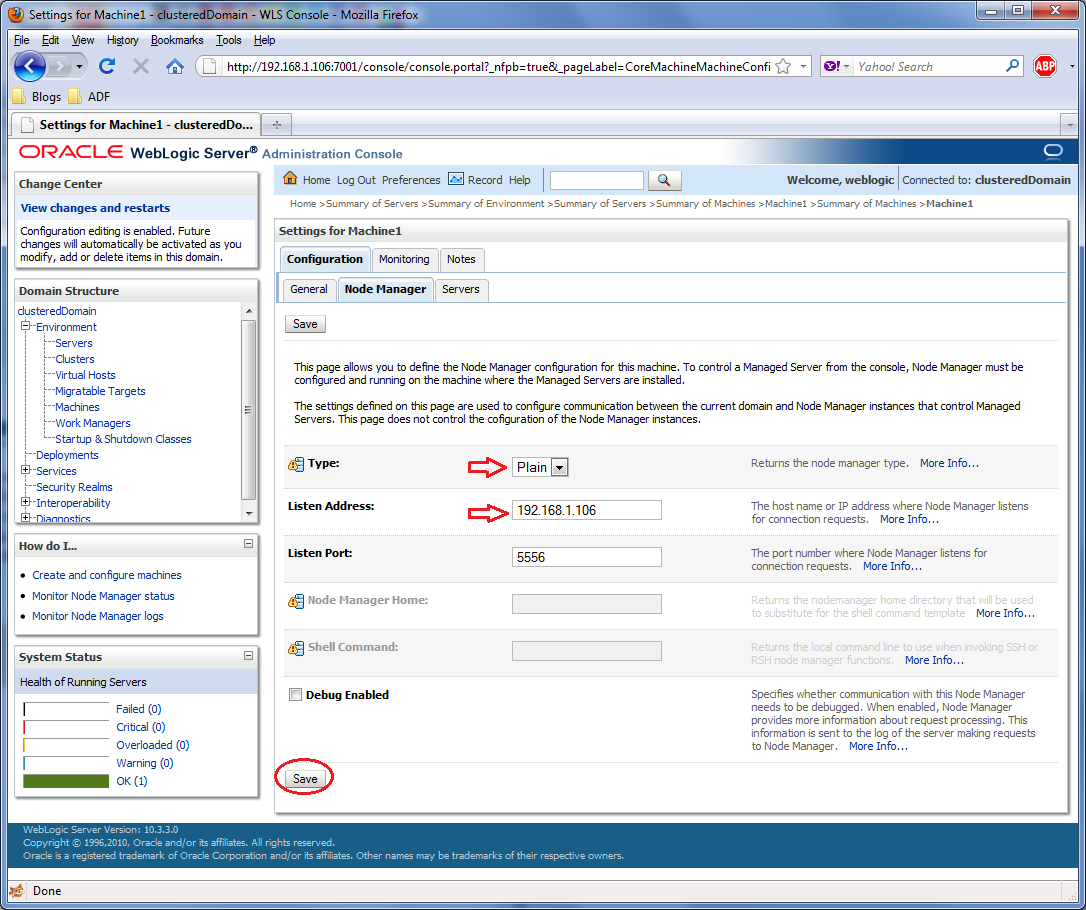
Now, click on the newly created Machine and then on the Node Manager tab under the Configuration tab. The node manager will be used on each physical machine to start the Managed Servers. On this tab we need to properly configure the node manager parameters. Make sure that the Type is set to Plain and that the Listen Address corresponds to the ip address of the physical machine where this Machine's node manager is running. You can leave the port to the default 5556. Don't forget to click on the Save button to save your settings.


Verify that your settings were set successful by observing the Messages area.

Now you will need to assign the appropriate Managed Server to the Machine. You do this by clicking on the Servers tab under the Machine Configuration tab and then the Add button.


In the Add a Server to Machine page ensure that the appropriate Managed Server - the one that corresponds to this Machine - is selected in the Select a server choice list. Click Next or Finish to proceed with the server assignment.


The Managed Server should be assigned successfully and should be displayed in the Servers table for this Machine.


Now repeat the steps above to create a WebLogic Machine for the second physical machine. Make sure that you configure the Machine correctly and assign the appropriate Managed Server to it.


Now with the WebLogic Machines created and configured we can start the node manager on the machine. Remember that we are still working on the same machine where we run the Configuration Wizard in the first place. It can be started by running the startNodeManager.sh script in the wlserver_10.3/server/bin directory under the Middleware Home. Before starting it, go over the start-up parameters specified in the nodemanager.properties configuration file in the wlserver_10.3/common/nodemanager directory and verify that it is not configured for SSL by ensuring that the SecureListener parameter is set to false. Once started the terminal window should indicate that the node manager is  running and listening to the port configured.


To verify that the node manager is reachable by the WebLogic Machine, return to the Machines page in the Administrator Console and on the Summary of Machines table click on the first Machine - Machine1 in this case the one we are currently configuring. Click on the Monitoring tab and observe in the Node Manager Status tab that the node manager Status is Reachable.


Conclusion

This concludes this first part of setting up the cluster. On the next and final part we will continue with the setup of the second physical machine, verify that both WebLogic Machines are operational, create, configure and start the WebLogic cluster.

Until the next time, keep on JDeveloping!


Related Posts Plugin for WordPress, Blogger...